View schedules in Matrx calendar
Matrx Calendar provides users with functions such as scheduled meeting management, viewing meeting details, and modifying meeting information. At the same time, the calendar board can more intuitively display meeting arrangements on different dates and times, which is a powerful assistant in work arrangements.
In addition, if you have the scheduling privilege and could manage others' meetings on the person's behalf, the calendar also provides the function of viewing the schedule information of the authorizer, making your work much more convenient.
- 💻Desktop Users
- 📱Mobile Users
Windows and macOS
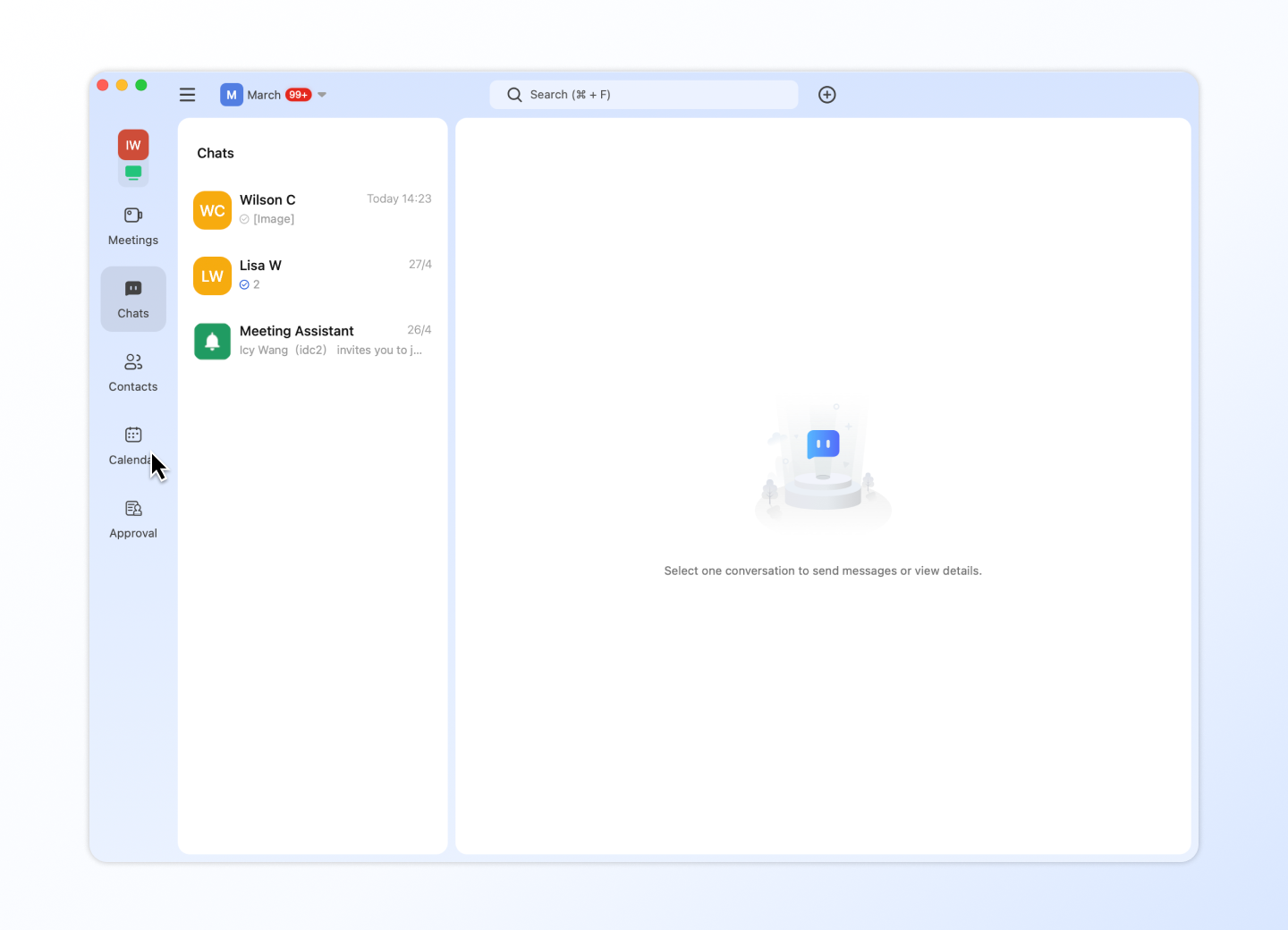
- Click on the calendar icon to open the calendar board.
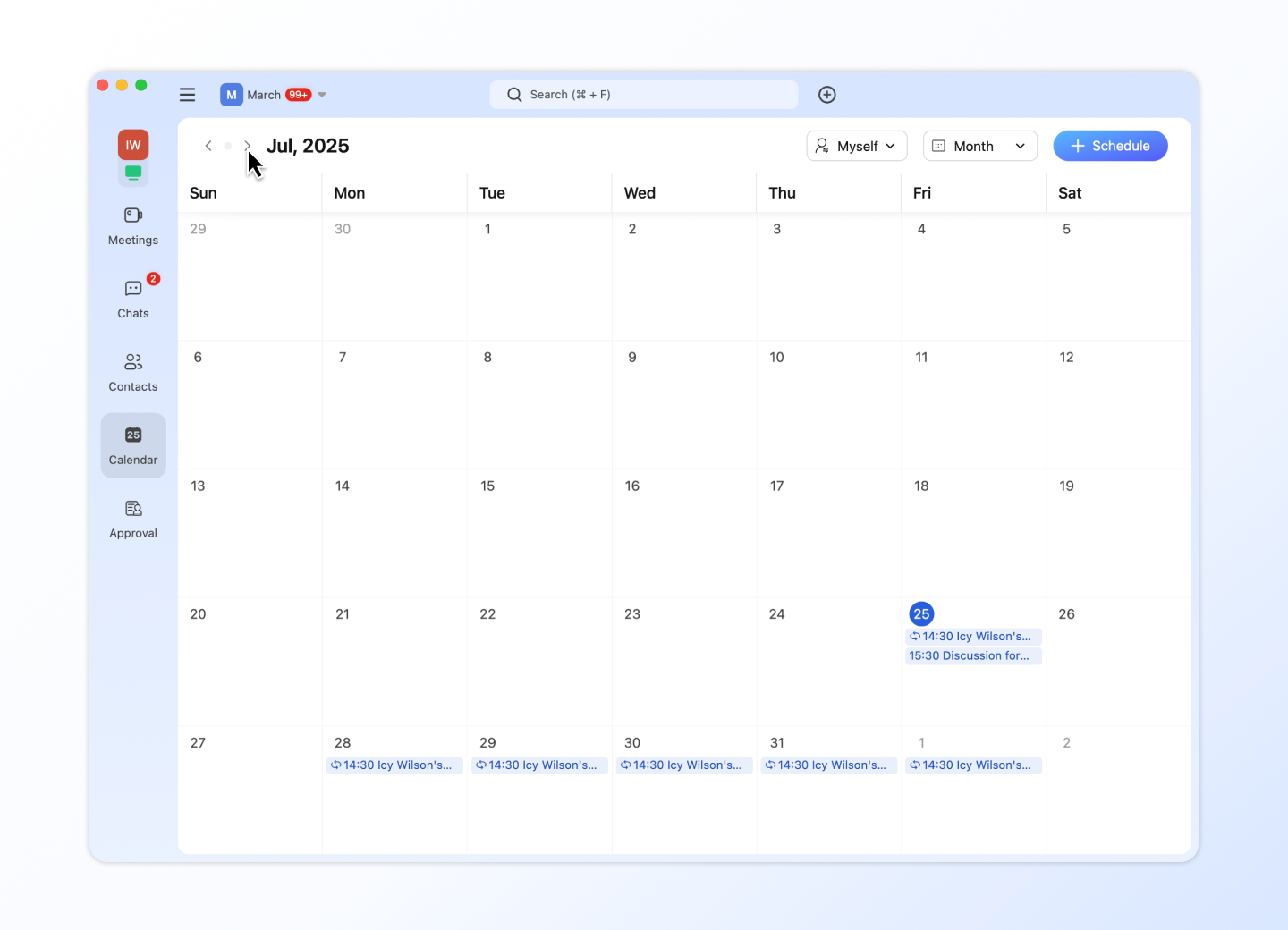
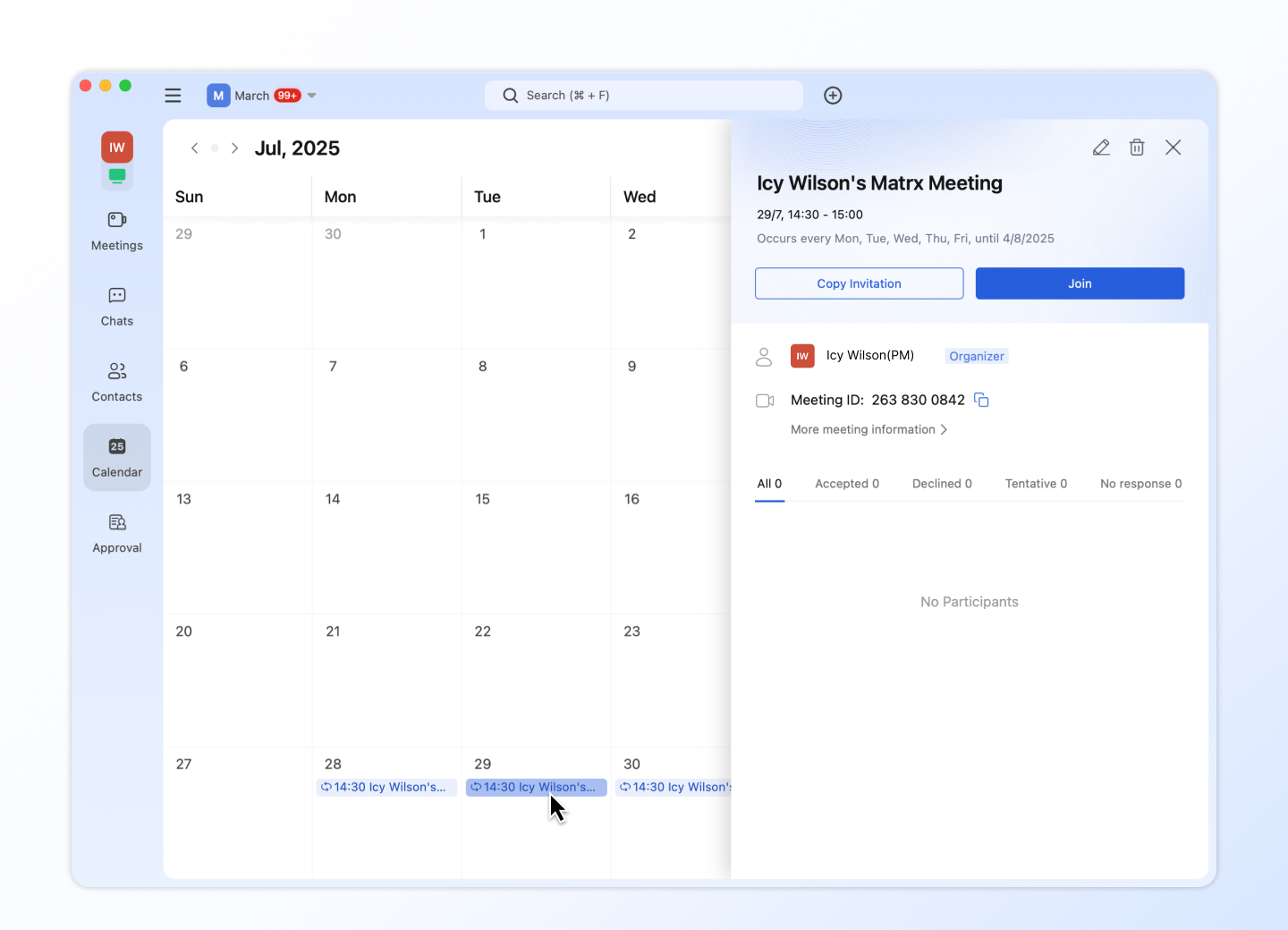
- On the calendar board, you can view future meeting schedules by month and use the arrow buttons on the upper left to view the meeting schedule for the previous or next month.
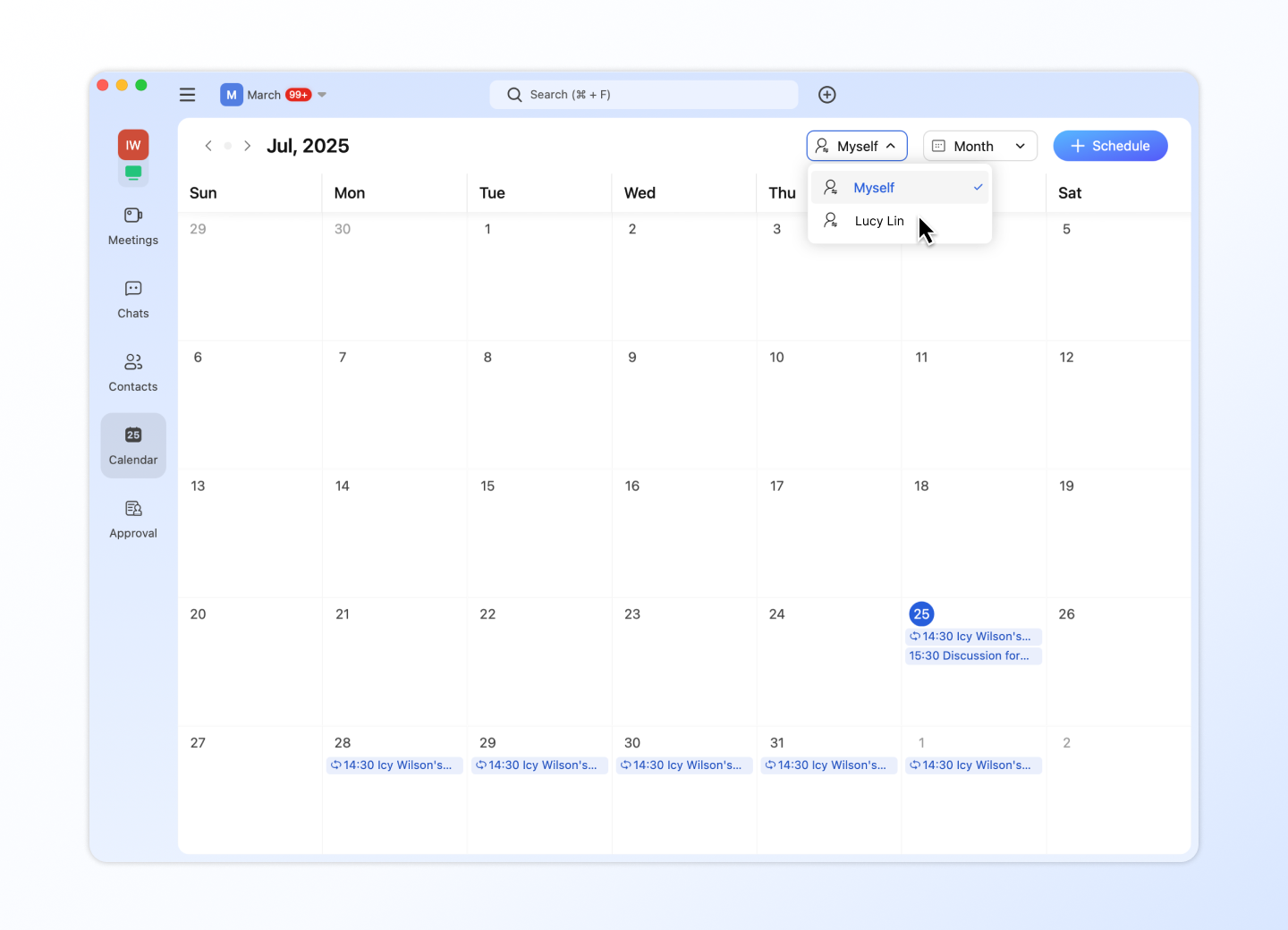
- If you are someone else's meeting assistant, you can use the person selector on the upper right to switch between different authorizers, including yourself of course.
- If you want to view the information of a specific meeting, click the meeting event to view the meeting card which includes the meeting topic and meeting time. It also provides the function of copying meeting invitations and joining meetings.
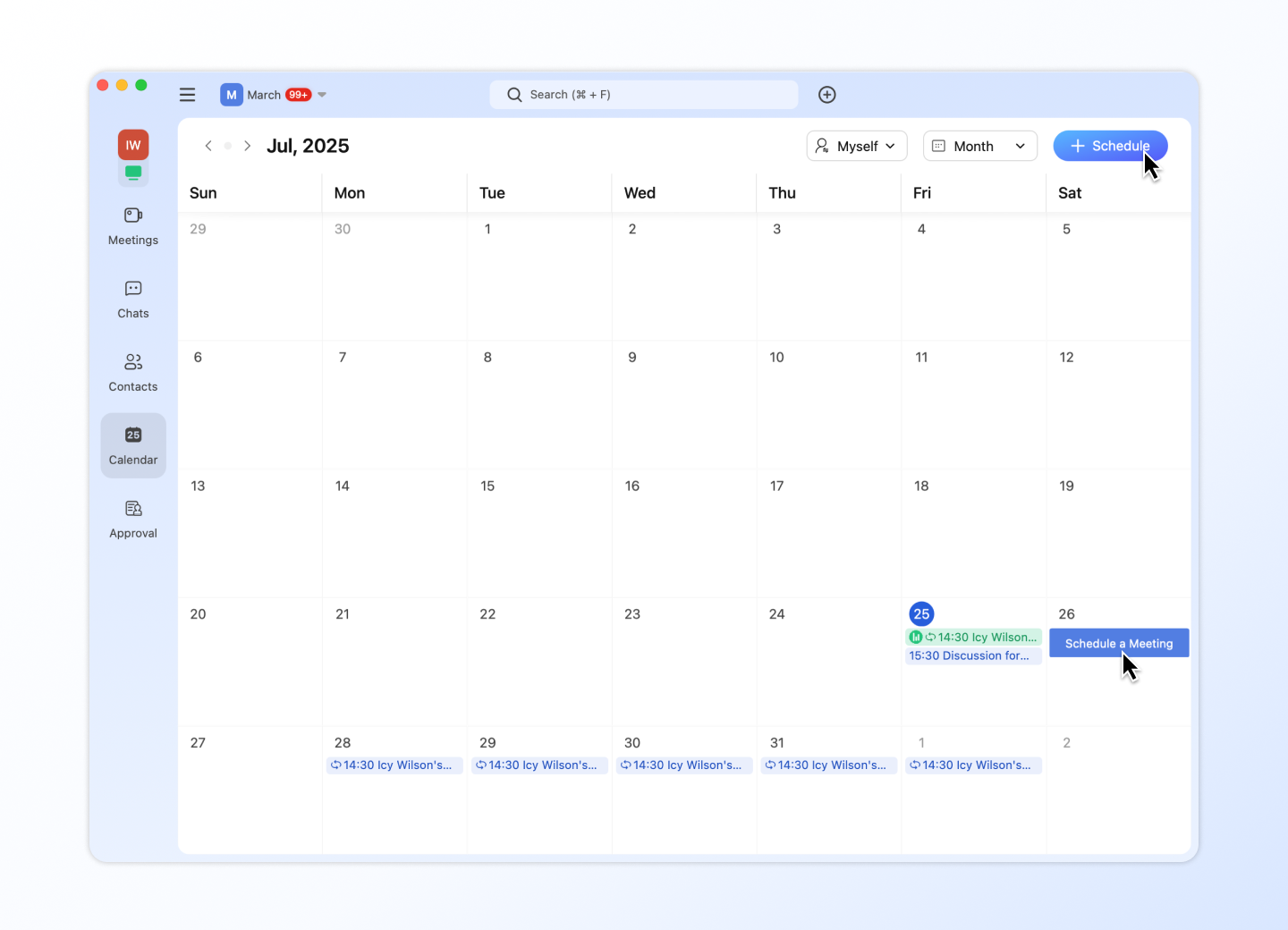
- You can add a schedule by clicking Add Schedule in the upper right corner of the calendar, or you can create a schedule directly by double-clicking on an area of the calendar for a specific time period on that day.
Android and iOS
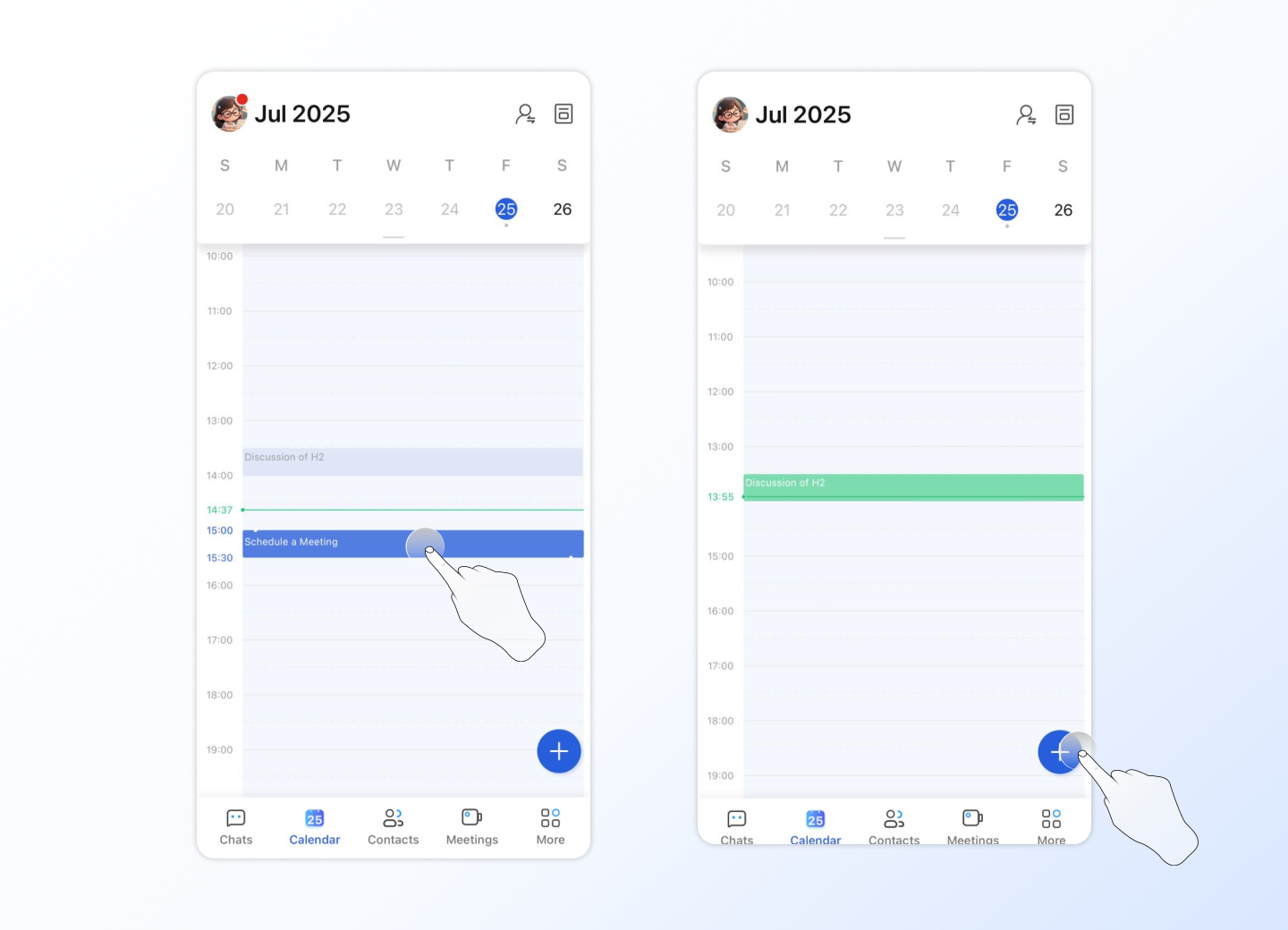
- Tap the calendar icon to open the calendar board.
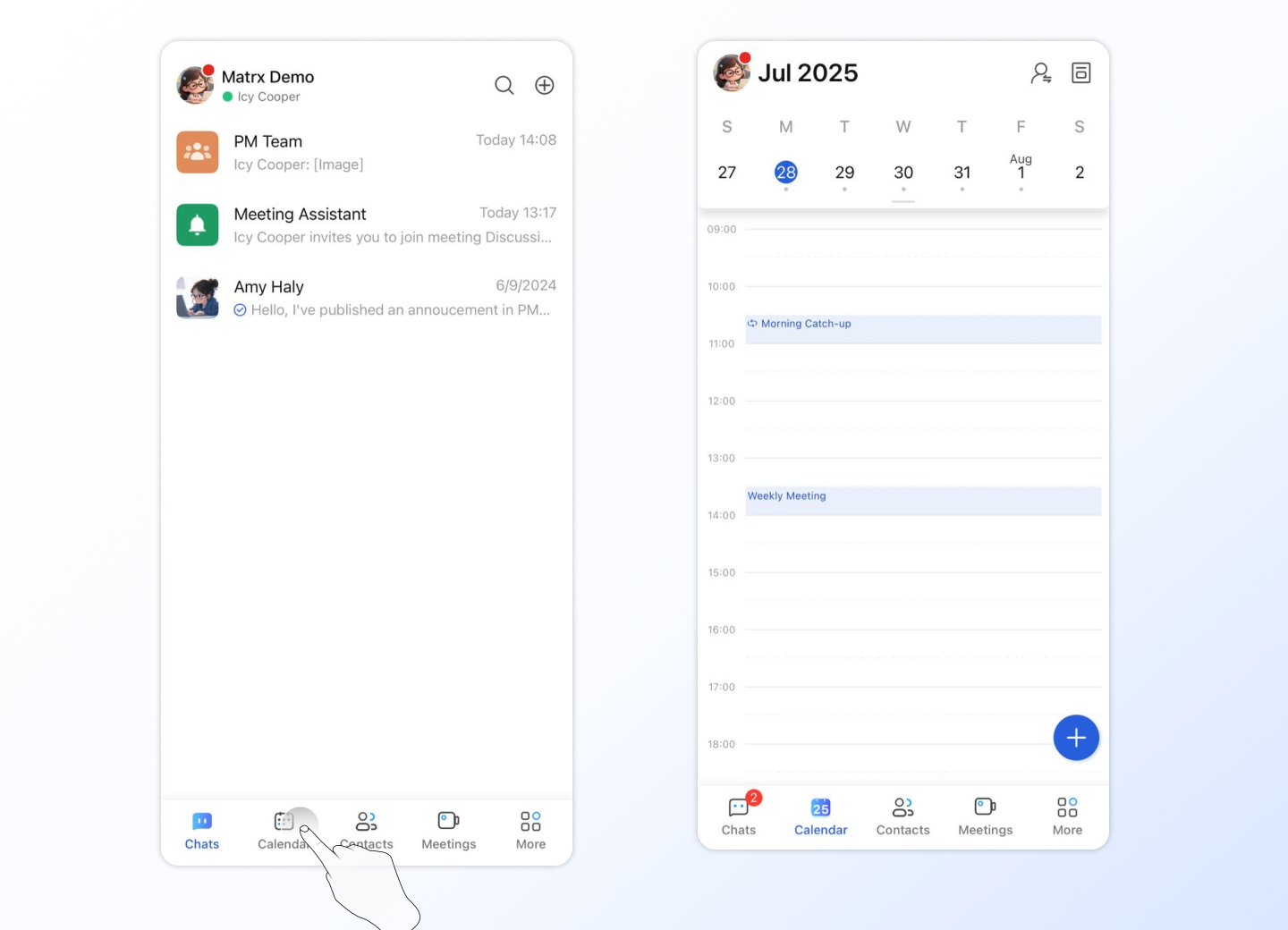
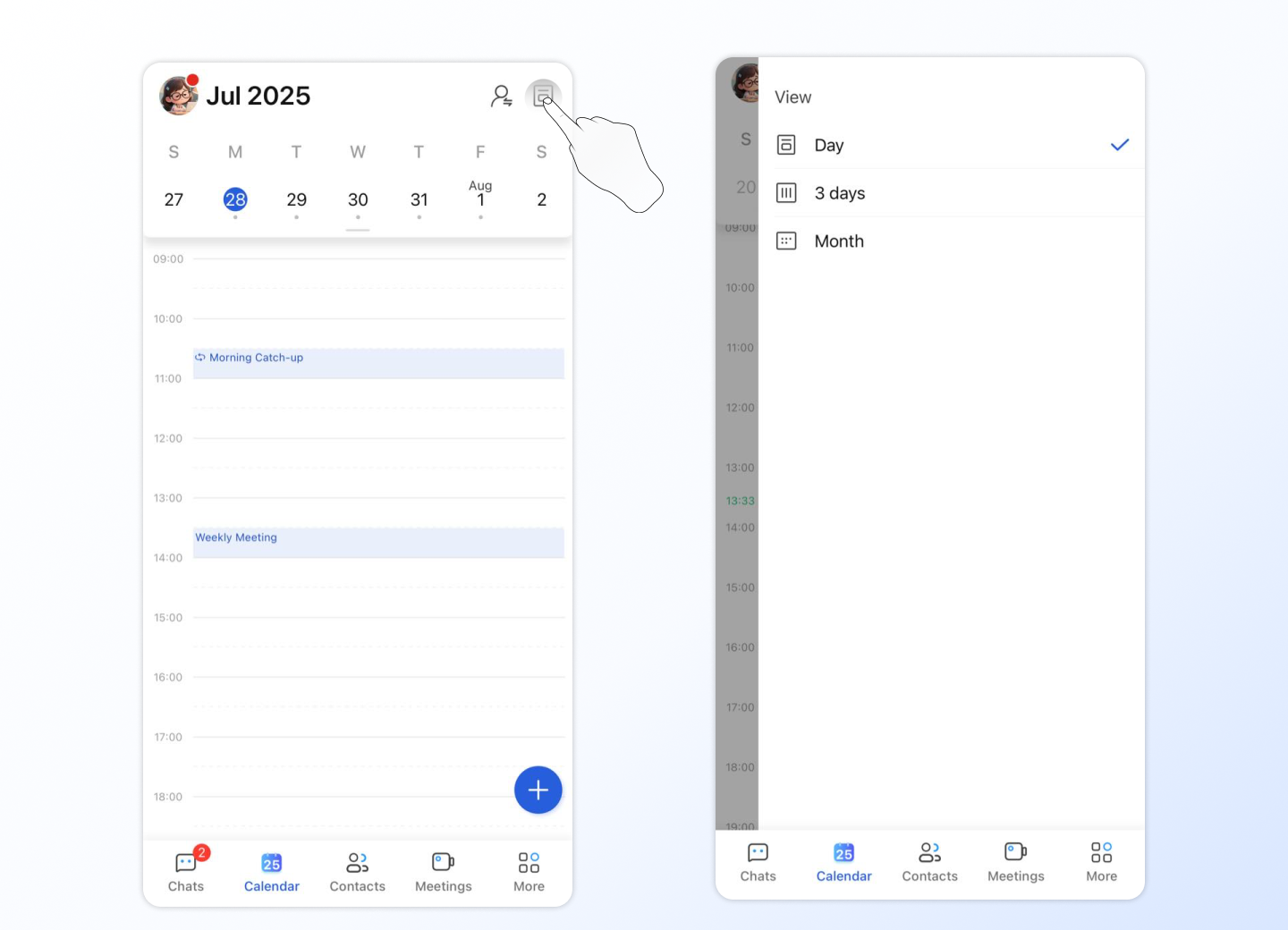
- On the calendar board, by default, you can view future meeting schedules by day. Or you can switch the mode to view schedules in 3 days /month by clicking the upper right icon to make the changes.
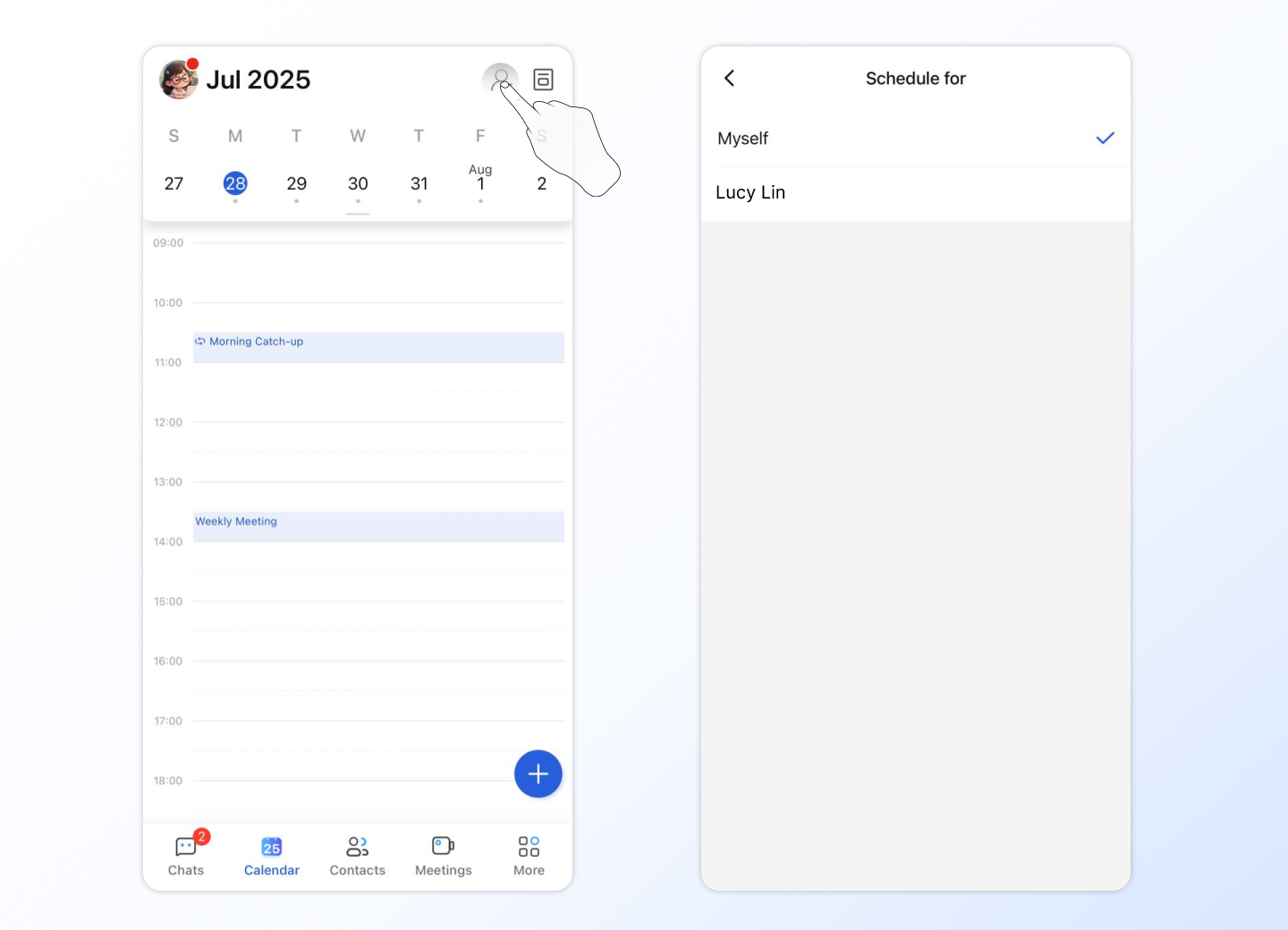
- If you are someone else's meeting assistant, you can use the person selector on the upper right to switch between different authorizers, including yourself of course.
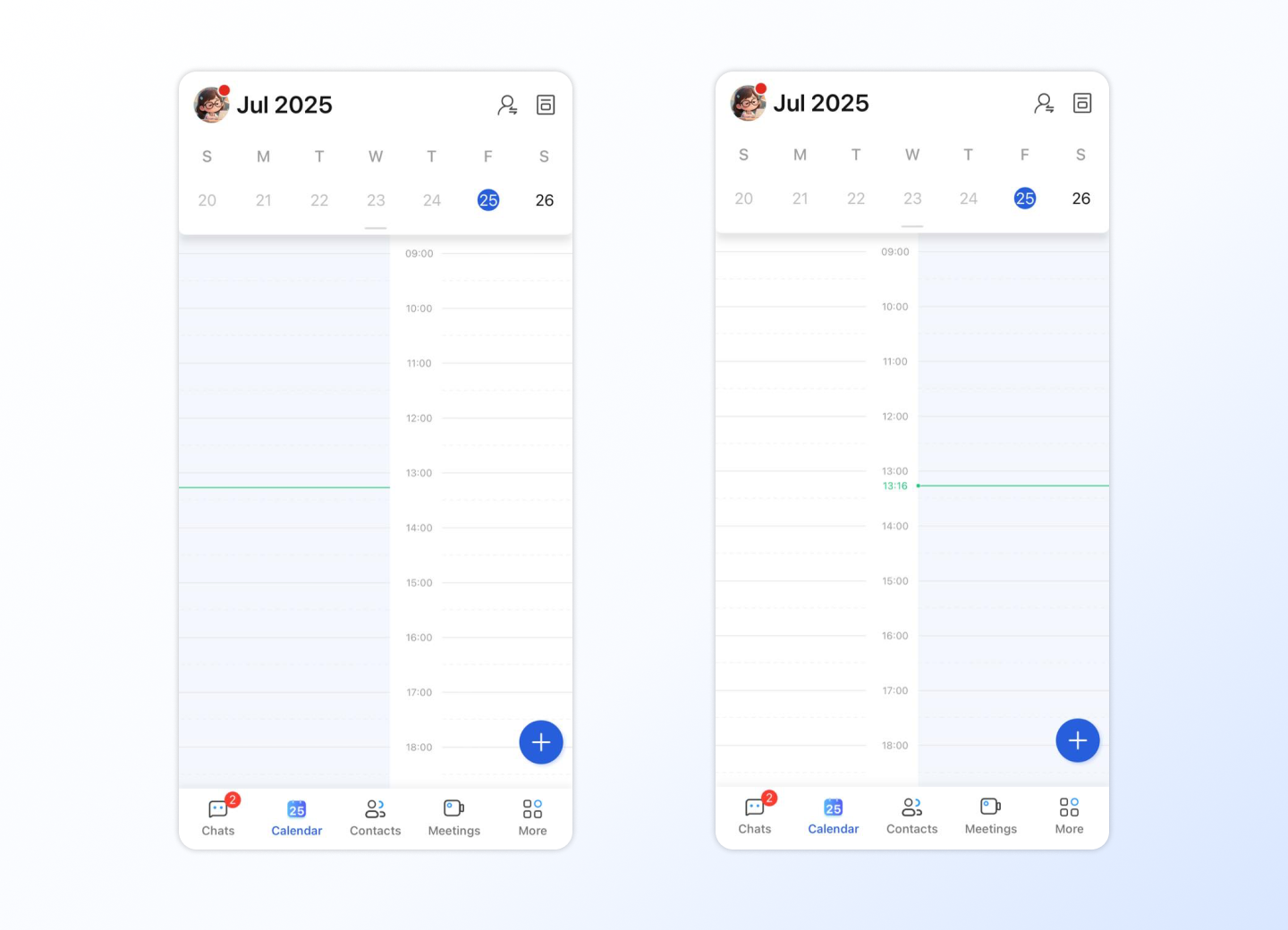
- You can swipe to the left or right to see the schedule for the previous or next day. Or swipe to see previous or next month if you are viewing by month.
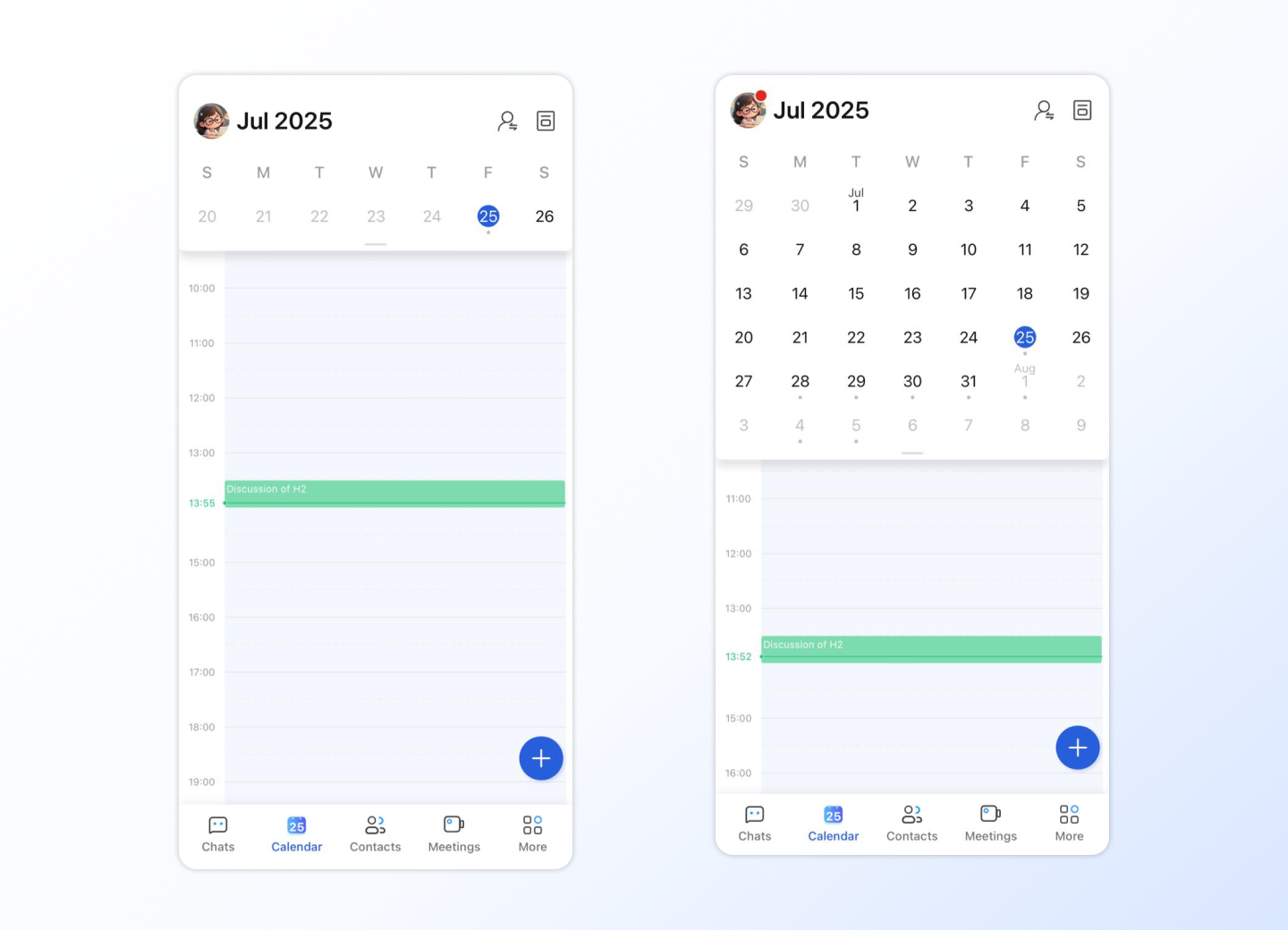
- If you need to view the meeting schedule for a particular day, you can pull down the date table to expand the current month's calendar and swipe left or right to view the previous or next month. At the same time, tap the day to jump directly to the schedule board of the selected day.
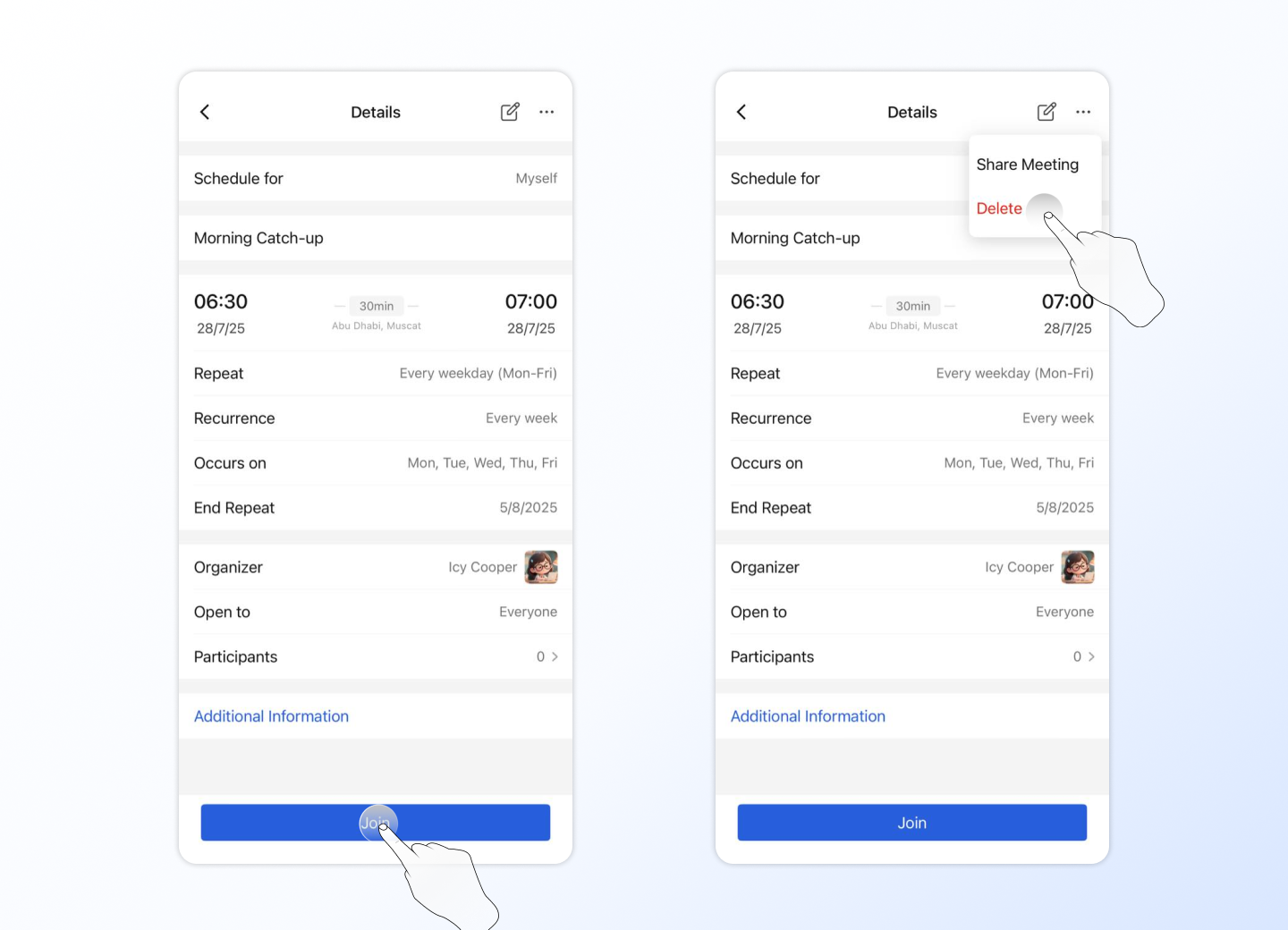
- Tap a meeting event and the page will jump to the details of the selected meeting. Tap the "Join" button to join the meeting. If you're the meeting organizer, you'll also see portals to edit and delete meetings.
- Tap a time period in a day to quickly create a schedule for that day, and the schedule duration will be automatically selected to half an hour for you. You can also quickly add a calendar by using the Add icon in the lower right corner.